Digital Garden
A collection of my stories, architectural thoughts, and technical writings. Some are polished essays, others are rough notes growing over time.

Debugging Wrist Pain: The Most Painful Acupuncture of My Life
We all do it without thinking. You’re scrolling through your feed, reading an article, or firing off a message, and without realizing it, your pinky finger has curled underneath the bottom edge of your phone to act as a makeshift shelf. For a long time, I thought nothing of it. In fact, when a faint, dull ache in my wrist slowly evolved into a persistent, na
Engineering & Architecture

Building BidBot for gShark Tank: 3 Engineering Highlights
Recently, my teammate Doddi and I secured 2nd place at gShark Tank, an internal innovation contest for the Google Cloud CE team. Our project, BidBot, was born from an ambitious question: What happens when you pit AI agents against each other to dynamically automate complex procurement workflows? If you want two Large Language Models to negotiate effectively

Technical Wisdom, Vibe Coding, and Software Engineering: Live from DDC 2026
This is an adapted and translated transcript of Kenrick’s panelist remarks from the Dicoding Developer Conference 2026 in Bandung, Indonesia. The Transcript Moderator: Kenrick, you have a dual perspective as a practitioner at a tech giant like Google Cloud and as an instructor at Dicoding. From an industry standpoint, what is the skill that acts as the "dif

From Startup Speed to Google Scale: What Earning TypeScript Readability Taught Me
Why it took 3 months, 90 changelists, and an auto-rollback in Google Maps to unlearn my bad coding habits. Yesterday, April 17, 2026, I achieved a milestone I’ve been grinding toward for months: I officially earned TypeScript Readability at Google. For those unfamiliar, Readability is a peer-reviewed certification process. It ensures an engineer writes code
The 119 Zombie Pods: How a Service Mesh Spiked My GKE Bill by 10x
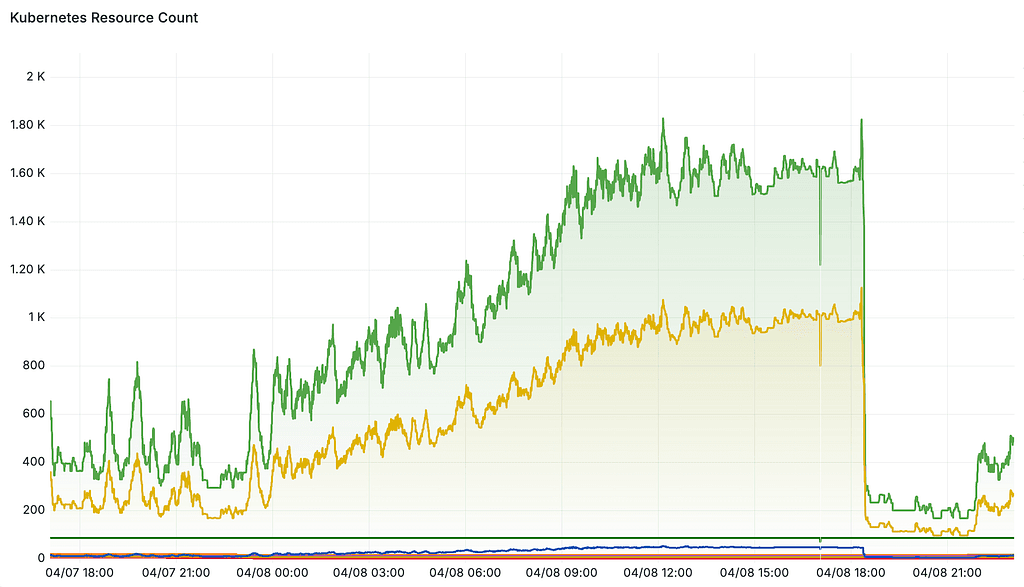
Native Sidecars were supposed to fix Kubernetes Jobs in v1.28. Here is why your modern cluster is still trapped in the past, and the 1-line label to fix it. This is Part 3 of the Service Mesh Survival Guide. Catch up on Part 1: The Database ECONNRESET Trap and Part 2: The Split-Brain 502 Health Check. tl;dr The Problem: When you put a Kubernetes CronJob into a Service Mesh, the injected Envoy sidecar proxy never exits. Because Kubernetes Jobs wait for all containers to terminate, the Job stays running forever as a zombie. The Fix: Add the sidecar.istio.io/inject: “false” label to your CronJob’s Pod Template to explicitly opt utility scripts out of the mesh. Run kubectl delete jobs — all to clear the graveyard. I enabled Google Cloud Service Mesh on a Tuesday evening. My internal database connections routed perfectly, my edge security was locked down with mTLS, and my zero-trust architecture was humming. I closed my laptop and let the cluster do its thing. On Wednesday evening, I checked my Grafana dashboard. My heart sank. My baseline cluster footprint of ~10 nodes and ~100 pods had silently exploded into a monstrous fleet of 53 nodes running over 1.13K pods. My daily GKE Autopilot cost had spiked by 10x. In 24 hours, a single, silent configuration error had spawned a massive zombie horde and burned through $100 of compute. Had this happened on an enterprise-scale cluster, a 10x spike in just one day would be a career-ending event. Here is exactly what went wrong, why bleeding-edge Kubernetes clusters still suffer from this ancient bug, and the 1-line YAML fix that instantly killed the horde! 1. The Physics of the Bug: Envoy Never Sleeps To figure out what was draining my cluster, I ran kubectl get pods. The culprit was immediately obvious: I had a simple internal datasource-syncer CronJob configured to run every 10 minutes. Instead of finishing and cleaning up, every single execution of the job was stuck in a Running state indefinitely. The problem wasn’t my code; it was the Service Mesh. When you label a namespace with istio-injection=enabled, the mesh’s mutating webhook intercepts every pod creation and injects an Envoy proxy container alongside your application. This is fantastic for long-running web servers, but it is fatal for a CronJob. A Kubernetes Job is designed to run a script and gracefully exit with a 0 code so Kubernetes can mark the Job as Completed and clean it up. However, the Envoy sidecar is a background web server. It is designed to run forever. Because one container in the pod (Envoy) was still running, Kubernetes refused to mark the Job as Completed. Ten minutes later, the next CronJob fired, creating a second pod. Fast forward 48 hours, and I had hundreds of zombie pods. On GKE Autopilot, this is a financial disaster. Autopilot bills based on requested pod resources. As the zombies stacked up, Autopilot aggressively provisioned 40+ new physical nodes to host them, driving the billing spike. 2. The Plot Twist: Didn’t Kubernetes Fix This? If you follow Kubernetes release notes closely, you might be screaming at your screen right now: “Wait! Kubernetes fixed this years ago!” You are right. Back in August 2023, the creators of Kubernetes announced Native Sidecars in Kubernetes 1.28. By injecting Envoy as an initContainer with a magical restartPolicy: Always flag, Kubernetes finally understood the concept of a sidecar. When the main script finishes, Kubernetes natively force-kills the Envoy initContainer and gracefully completes the Job. My cluster was running Kubernetes 1.34. Native Sidecars are a fully mature, General Availability (GA) feature. So why on earth did I still get a cluster full of zombies? 3. The Smoking Gun: Legacy Injection I pulled the YAML of one of my zombie pods to see what the Service Mesh webhook was actually doing under the hood. Here is the smoking gun: initContainers: - name: istio-validation # A quick networking check script containers: - name: istio-proxy # Envoy is injected as a standard container! image: gcr.io/gke-release/asm/proxyv2:1.20.8-asm.68-distroless Despite running a bleeding-edge K8s 1.34 cluster, Google Cloud Service Mesh forcefully injected the Envoy proxy as a legacy container, completely ignoring the Native Sidecar feature supported by the Kubernetes API server! Why? The answer lies in the proxy image tag itself: 1.20.8-asm.68. 4. The Release Channel Lag Managed cloud services inherently move slower than open-source projects. To ensure massive enterprise stability, Google Cloud Service Mesh (CSM) anchors its managed data plane to older, highly-tested versions of Istio. Even though I provisioned this cluster in April 2026, Google’s Regular Release Channel for CSM was explicitly anchored to Istio 1.20 (docs). If you dig into the upstream Istio changelogs, Native Sidecars were experimental in Istio 1.19 and strictly disabled by default. It wasn’t until Istio 1.27 that the Istio team finally promoted the ENABLE_NATIVE_SIDECARS feature flag to default to true. Furthermore, if you check the CSM supported features docs, the Native Sidecar feature (ENABLE_NATIVE_SIDECARS) is explicitly marked as unsupported on the managed control plane. Because Google’s managed control plane (Traffic Director) is running Istio 1.20 logic and explicitly locking out this configuration, it inherits the old false default. The Envoy sidecar boots as a standard container, refuses to exit, and our modern Kubernetes 1.34 cluster acts like it’s 2022. 5. The 1-Line Fix Until Google CSM upgrades its stable channels past Istio 1.27, you have to take matters into your own hands. Even when Native Sidecars become the default on the managed channels, spinning up a heavy Envoy proxy for a 5-second internal utility script is a massive waste of cloud compute. The best practice is to explicitly opt your internal CronJobs out of the Service Mesh entirely. To fix the bleeding, simply add this label to your CronJob’s Pod Template: apiVersion: batch/v1 kind: CronJob metadata: name: datasource-syncer spec: jobTemplate: spec: template: metadata: labels: app: datasource-syncer sidecar.istio.io/inject: "false" # <-- THE MAGIC FIX Note: It must be a label, not an annotation, so the Istio mutating webhook can efficiently filter it out during pod creation! Once I applied the label, I ran a single command to assassinate the zombie horde: kubectl delete jobs --all -n monitoring If you look back at the Grafana dashboard, you can see the exact moment I ran that command. The pod count plummeted, 40+ Autopilot nodes spun down, and my billing dashboard finally breathed a sigh of relief. Conclusion When you adopt a Service Mesh, it is incredibly easy to just label a namespace, deploy your apps, and assume the mesh will handle the rest without knowing that injecting an Envoy proxy into a Kubernetes Job would prevent it from ever completing. While the Kubernetes community has technically solved this problem with Native Sidecars, the reality of using managed enterprise services is that those modern features aren’t always available to you on Day 1. The cloud moves fast, but managed release channels move slow. Always inspect your pod YAMLs, explicitly opt your utility scripts out of the mesh, and most importantly: set up billing alerts before you go to sleep! Have you ever woken up to a runaway cluster? Share your best financial horror stories in the comments below!
The Split-Brain Health Check: Fixing 502 Bad Gateway in GKE & Istio
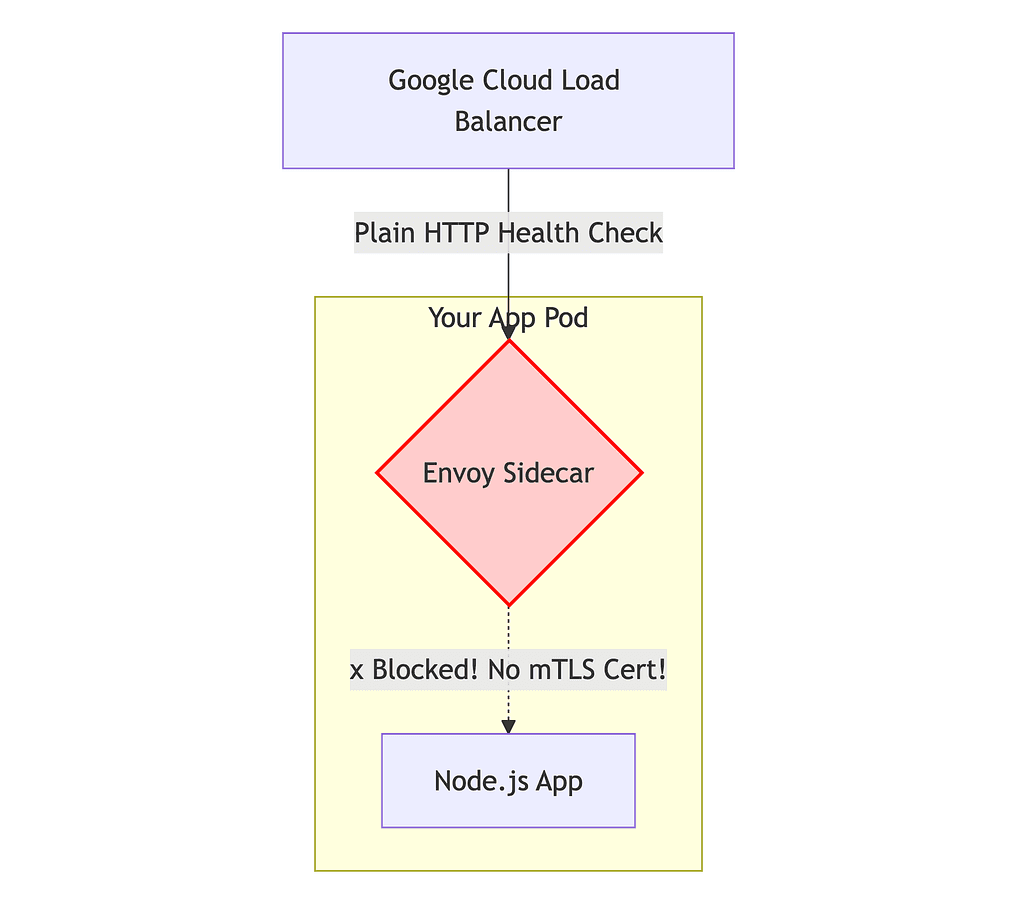
Why standard Ingress causes 502 errors during STRICT mTLS, and how to build a production-ready Istio Ingress Gateway. This is Part 2 of the Service Mesh Survival Guide. If your internal database connections are dropping with ECONNRESET errors, check out Part 1 here. tl;dr The Problem: Standard Kubernetes Ingress sits outside your Service Mesh. If you enforce STRICT mTLS, your Envoy sidecars will block the Load Balancer’s unencrypted health checks, resulting in a 502 Bad Gateway. The Fix: Deploy an Istio Ingress Gateway. It acts as a standalone Envoy proxy at the edge of your cluster to safely answer external health checks and securely translate incoming internet traffic into internal mTLS. ⚠️ Disclaimer: The API Track Google Cloud Service Mesh currently supports two different configuration tracks: the classic Istio API and the newer Kubernetes Gateway API. This guide is written strictly for clusters using the battle-tested Istio API track. You just got your internal Service Mesh working perfectly. Your microservices are communicating securely, and every pod in your namespace is sporting a shiny new Envoy sidecar. Now, it is time for the final boss: Zero-Trust Security. You want to lock down your network so no unencrypted traffic can enter. You apply a PeerAuthentication policy to set mTLS to STRICT. But the moment you flip that switch, your frontend web app drops offline. You check your browser, and you are greeted by a massive: 502 Bad Gateway If you used a standard Kubernetes Ingress to expose your app, you just hit the Service Mesh wall. Standard Ingress is fundamentally incompatible with STRICT mTLS. It forces you to leave your network in PERMISSIVE mode, stripping away the exact security benefits you installed the mesh to get. Here is exactly why standard Ingress fails when you try to enforce Zero-Trust, and the step-by-step guide to building a production-ready Istio Ingress Gateway to replace it. 1. The Problem with Standard Ingress To understand why standard Ingress breaks, we have to look at the boundaries of your Service Mesh. When you use a standard Kubernetes kind: Ingress (like the default GKE Ingress), the cloud provider spins up an external L7 HTTP Load Balancer. This Load Balancer lives completely outside of your Service Mesh. This causes two massive problems for your cluster: Problem A: The “Split-Brain” 502 Bad Gateway (The Zero-Trust Trap) To check if your pods are alive, the Cloud Load Balancer sends an unencrypted HTTP GET request. If your namespace is in the default PERMISSIVE mode, your Envoy sidecar accepts this unencrypted ping, and your app works. But the whole point of a Service Mesh is Zero-Trust! When you finally apply a STRICT mTLS policy to secure your cluster, your application’s Envoy sidecar turns into an incredibly strict bouncer. The health checker knocks on the door using plain HTTP. Envoy sees it lacks an Istio mTLS certificate, drops the connection, and the Load Balancer marks your app as dead. You are left with a terrible choice: Do you leave your network in PERMISSIVE mode (compromising your security), or do you turn on STRICT mode (breaking your website)? Problem B: Loss of Edge Features Because the traffic bypasses the edge of the mesh and goes straight to your pod, you lose all of Istio’s powerful ingress features. You can’t do advanced traffic splitting (e.g., routing 10% of internet traffic to a Canary release), and your mesh Topology graphs won’t show the incoming internet traffic. 2. The Solution: Istio Ingress Gateway The fix is to deploy an Istio Ingress Gateway at the edge of your cluster to act as the official “Front Door.” Why this is magic: The Port 15021 Trick: Istio designed the Ingress Gateway specifically to solve the health check problem. The Gateway pod exposes a dedicated, unencrypted port (15021). The Cloud Load Balancer sends its plain HTTP health checks to this port, the Gateway responds with 200 OK, and the Load Balancer turns green! The mTLS Translation: When a user visits your website, the traffic hits the Gateway. The Gateway, acting as a fully trusted member of the Service Mesh, receives the external traffic, encrypts it into mTLS, and securely forwards it to your application pod. 3. Implementation in 3 Steps Here is the production-ready way to expose your app to the internet. (For this example, we will configure standard HTTP traffic). Step 1: Deploy the Physical Proxy First, deploy the physical Envoy proxy into a dedicated namespace (docs). kubectl create namespace istio-ingress kubectl label namespace istio-ingress istio-injection=enabled # Apply the standard Istio Gateway deployment manifest git clone https://github.com/GoogleCloudPlatform/anthos-service-mesh-packages.git cd anthos-service-mesh-packages kubectl apply -n istio-ingress -f samples/gateways/istio-ingressgateway Wait a moment, then run kubectl get svc -n istio-ingress to grab your new External IP address! Step 2: Deploy the Istio Gateway (The Toll Booth) Create an Istio Gateway CRD. This tells the physical Envoy pod which ports to open (we will use Port 80 for HTTP traffic). apiVersion: networking.istio.io/v1beta1 kind: Gateway metadata: name: shared-gateway namespace: istio-ingress spec: selector: istio: ingressgateway # Maps to the proxy deployed in Step 1 servers: - port: number: 80 name: http protocol: HTTP hosts: - "myapp.yourdomain.com" (Note: When you are ready to secure your site with HTTPS later, you simply add a Port 443 block here and attach your TLS certificates). Step 3: Deploy the VirtualService (The Map) Instead of putting routing rules in a standard K8s Ingress, you (the App Developer) write a VirtualService that attaches to the Gateway. apiVersion: networking.istio.io/v1beta1 kind: VirtualService metadata: name: my-app-route namespace: my-app spec: hosts: - "myapp.yourdomain.com" gateways: - istio-ingress/shared-gateway # Binds to the Gateway from Step 2 http: - match: - uri: prefix: / route: - destination: host: my-app-service port: number: 80 💡 Pro-Tip: The Service Mesh Order of Operations If you are migrating a live application into a Service Mesh, the order in which you apply your YAML matters immensely. To avoid downtime, follow this sequence: Permissive Mode: Ensure your app’s namespace is in PERMISSIVE mTLS mode. Your legacy Ingress will still work. Deploy the Edge: Spin up your Envoy edge proxy, Gateway, and VirtualService. Cutover the DNS: Point your domain to the new Istio Gateway’s external IP address. Lock the Doors (Strict Mode): Only after the Istio Gateway is fully handling external traffic, apply your PeerAuthentication: STRICT policy to lock out unencrypted connections! Conclusion Service Meshes force us to rethink how traffic flows into and around our clusters. A 502 Bad Gateway in Istio isn’t necessarily a bug — it’s often your security policies doing exactly what you told them to do! By ditching standard Ingress and embracing the Istio Ingress Gateway, you separate your external ingress logic from your internal Zero-Trust security posture. You keep the Load Balancers happy, you unlock powerful edge routing, and you finally get to sleep through the night without health check alerts waking you up. Did this fix your Split-Brain 502 error? Let me know your thoughts and questions in the comments below!
The Service Mesh Trap: Fixing Redis Connection Reset Error in Istio & Cloud Service Mesh
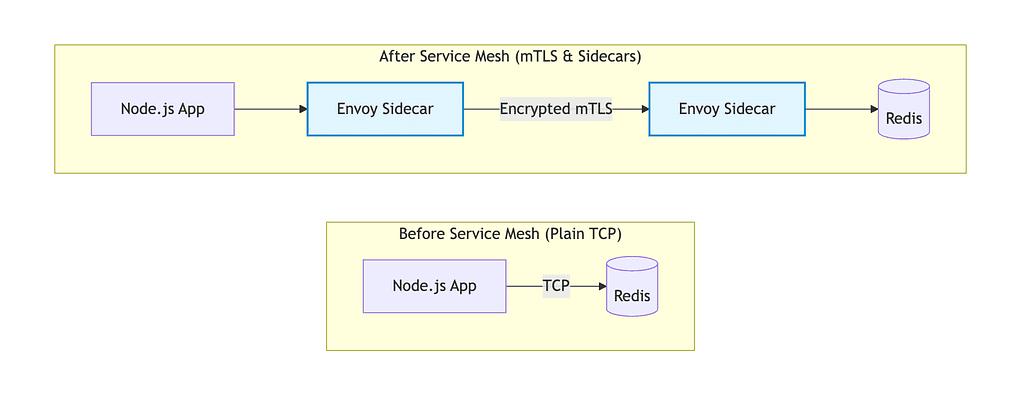
Why your database connections drop when migrating to Istio/Cloud Service Mesh, and the modern Kubernetes fix. tl;dr The Problem: Istio’s automatic “protocol sniffing” is pausing your database connection to guess the protocol, causing your Node.js database client to time out and throw an ECONNRESET. The Fix: Edit your Redis Kubernetes Service. Either prefix the port name with tcp- (e.g., name: tcp-redis) or use the modern appProtocol: tcp field. Then, run kubectl rollout restart on both your app and Redis pods so the Envoy proxies pick up the new routing rule. ⚠️ Disclaimer: The API Track Google Cloud Service Mesh currently supports two different configuration tracks: the classic Istio API and the newer Kubernetes Gateway API. This guide is written strictly for clusters using the battle-tested Istio API track. You just did it. You successfully deployed Istio (or Google Cloud Service Mesh) to your Kubernetes cluster. You labeled your namespace with istio-injection=enabled, rolled out your deployments, and prepared to bask in the glory of automatic mutual TLS (mTLS) and zero-trust network security. But when you check your Node.js application logs, your terminal is suddenly bleeding red with a stack trace that looks exactly like this: Error: read ECONNRESET at TCP.onStreamRead (node:internal/stream_base_commons:216:20) { errno: -104, code: 'ECONNRESET', syscall: 'read' } Your web traffic is routing perfectly, but your backend absolutely cannot talk to your Redis cache or Postgres database. You check the Redis pod — it’s running perfectly. You check the credentials — they are correct. So, what broke? Welcome to the classic Service Mesh Database Trap. Here is exactly why Envoy proxies break Node.js database connections, and the 2-line YAML fix to solve it. 1. The Unseen Middleman: Who Snipped the Wire? If you look closely at the error, it originates from node:internal/stream_base_commons. Your Node.js application opened a TCP socket to talk to Redis. Node.js was sitting there patiently waiting to read the incoming response stream (TCP.onStreamRead). But out of nowhere, the connection was abruptly killed. Node.js panicked, threw error code -104 (Connection Reset), and crashed the Redis service. To understand who killed the connection, we have to look at how a service mesh changes your network topology. Before the mesh, your Node.js app talked directly to the Redis pod over a raw TCP connection. After enabling the mesh, that connection is intercepted. Envoy proxies are incredibly fast. But in this scenario, Envoy is trying to be too smart. 2. The Villain: Automatic Protocol Sniffing When traffic hits an Envoy sidecar, Envoy needs to know what language the traffic is speaking so it knows how to route it. Is it HTTP? gRPC? Raw TCP? By default, modern versions of Istio use Automatic Protocol Sniffing. If Envoy doesn’t explicitly know what protocol a port uses, it intercepts the connection, pauses it, and inspects the first few bytes of data trying to “guess” the protocol. Because 90% of microservice traffic is HTTP, Envoy heavily biases toward looking for HTTP headers. This sniffing phase causes two massive problems for databases: The Timeout: Redis uses a “Client-First” TCP protocol. Your Node.js Redis client opens a connection and immediately expects to send a command. Envoy pausing the connection to “sniff” the bytes introduces a tiny latency spike. Strict database clients view this delay as a dead connection and forcefully drop it, resulting in our dreaded ECONNRESET. The Misidentification: If the first few bytes of your Redis command coincidentally look like an HTTP request, Envoy will force the traffic into its HTTP filter chain. When it realizes it’s actually invalid HTTP, Envoy panics and resets the connection itself. Note: This also happens with “Server-First” databases like Postgres or MySQL. The app waits for the DB to say hello, Envoy waits for the app to send bytes to sniff, and everyone times out in a Mexican Standoff. 3. The Fix: Stop Guessing We need to tell Envoy to stop guessing. We want Envoy to instantly treat this connection as a raw TCP pipe and forward the bytes without inspecting them. You have two ways to do this: port naming and appProtocol field (docs). Option A: Port Naming Service ports must be named. The name must be of the format <protocol>[-<suffix>] (docs). Historically, this is how Istio determined the protocol. ❌ The Broken YAML (Relies on Sniffing): apiVersion: v1 kind: Service metadata: name: redis spec: ports: - port: 6379 # <-- No name, Envoy will guess (and fail) targetPort: 6379 ✅ The Fixed YAML: apiVersion: v1 kind: Service metadata: name: redis spec: ports: - name: tcp-redis # <-- THE MAGIC FIX port: 6379 targetPort: 6379 Option B: The Modern appProtocol Field If you think the naming feels a bit “hacky,” you aren’t alone. Starting in Kubernetes 1.18, a new field was introduced specifically for service meshes: appProtocol. Instead of messing with the port name, you can explicitly declare the Layer 7 protocol. It does the exact same thing behind the scenes and looks much cleaner: ✅ The Modern YAML (Bypasses Sniffing): apiVersion: v1 kind: Service metadata: name: redis spec: ports: - name: my-cache-port # <-- Name it whatever you want! protocol: TCP # <-- Layer 4 (Kubernetes) appProtocol: tcp # <-- Layer 7 (Istio) port: 6379 targetPort: 6379 4. Restart to Clear the Pool After applying the updated Service YAML, Envoy will dynamically pick up the new routing rules. However, because Node.js database clients use aggressive connection pooling, your app might still be trying to use the old, broken sockets. To ensure your app establishes a brand-new, clean connection through the updated Envoy pipe, do a quick rolling restart of your application pod: kubectl rollout restart deployment my-node-app 💡 Pro-Tip: tcp vs. redis Protocol Istio natively supports the redis protocol. So why use tcp as our fix? Setting the protocol to tcp provides a transparent, “dumb” pipe. It is the safest, most bulletproof baseline to eliminate ECONNRESET errors because Envoy gets out of the way. It is also strictly required if your app encrypts the Redis connection using TLS (because Envoy cannot parse encrypted commands). However, if you are running an unencrypted Redis pod inside your cluster and your connection is completely stable, try upgrading to redis protocol! This activates Envoy’s Layer 7 Redis filter, giving you deep observability into your cache (like seeing GET/SET latencies in Grafana). The Golden Rule: Fix the connection using tcp first. Once your app is stable, upgrade to redis to unlock the metrics! Conclusion Service Meshes are incredibly powerful tools for observability and zero-trust security. But under the hood, they are governed by strict networking rules. Whenever you bring a database into a Service Mesh, remember the golden rule: Never let Envoy guess your protocol. Explicitly declare the protocol via name or appProtocol field, restart your app to clear the connection pool, and enjoy your beautifully encrypted, highly-available infrastructure! Next Up in the Service Mesh Survival Guide: Now that our internal (East-West) database connections are stable, how do we get external web traffic into the mesh securely? In Part 2, we’ll solve the dreaded 502 Bad Gateway / Split-Brain Health Check issue!
NPM Trusted Publishing: The “Weird” 404 Error and the Node.js 24 Fix
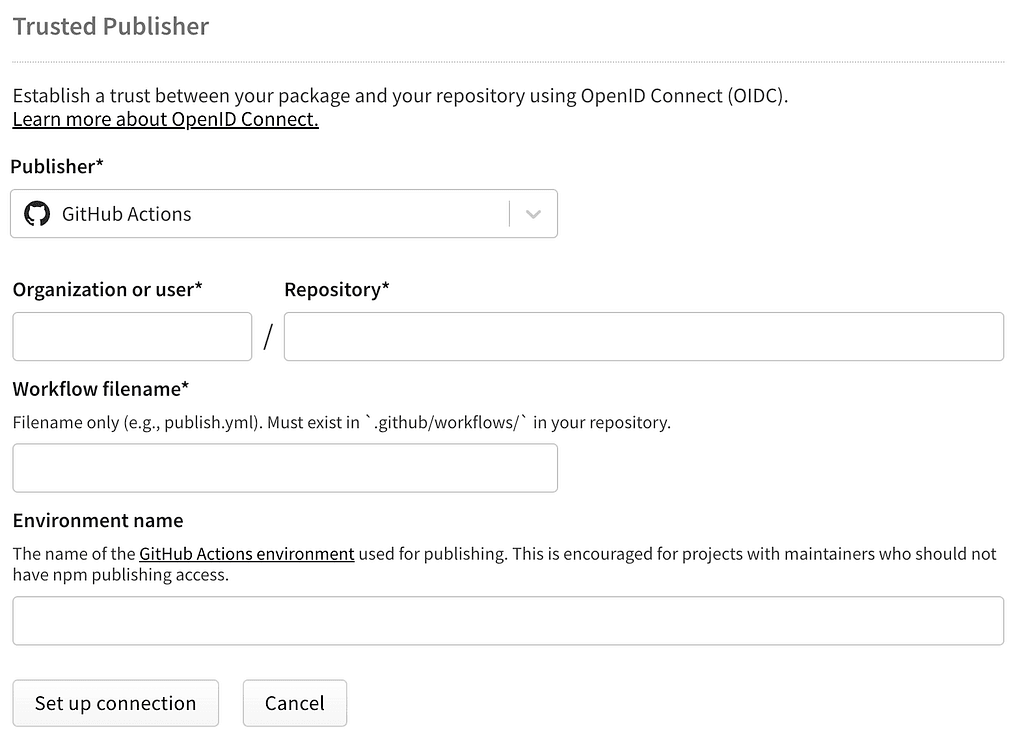
Why your perfectly configured GitHub Action is failing with “Access token expired” — and how to fix it in seconds. tl;dr The Problem: Node.js 22 ships with npm v10. The Fix: Update your workflow to use Node.js 24 (LTS), which ships with npm v11. If you’ve recently switched to npm trusted publishing, you’re making the right move. It eliminates the need for long-lived secrets, simplifies key management, and automatically generates provenance attestations for your packages. But if you are migrating an existing workflow, you might hit a wall. You configured the trust relationship on npmjs.com. You set up your OIDC permissions in GitHub Actions. You pushed your release. And then… red text. Specifically, a confusing combination of Access token expired and a 404 Not Found. Here is the log that had me scratching my head: npm notice Publishing to https://registry.npmjs.org/ with tag latest and public access npm notice publish Signed provenance statement with source and build information from GitHub Actions npm notice publish Provenance statement published to transparency log npm notice Access token expired or revoked. Please try logging in again. npm error code E404 npm error 404 Not Found - PUT https://registry.npmjs.org/@scope/package - Not found npm error 404 '@scope/package@0.1.4' is not in this registry. The Investigation The error message is gaslighting you. “Access token expired”: This feels impossible. With trusted publishing, the token is generated on the fly via OIDC. It can’t be “expired” — it was created 3 seconds ago. “404 Not Found”: Also confusing. Is the registry down? Did I type the package name wrong? Naturally, I went through the standard troubleshooting checklist: Workflow Filename: Did I match the filename in npm settings exactly to publish.yml? (Yes). Permissions: Did I include id-token: write? (Yes). Environment: Did I accidentally set an Environment in npm but not in YAML? (No). Everything looked perfect. My workflow was running on Node.js 22 (maintenance LTS), which seemed like the safe, standard choice. - name: Setup Node.js uses: actions/setup-node@v4 with: node-version: "22.x" # <--- The culprit registry-url: "https://registry.npmjs.org" The Root Cause The issue isn’t your configuration; it’s the npm CLI version. Buried in the documentation is a recent requirement: Trusted Publishing now requires npm CLI version 11.5.1 or later. Here is the problem: Node.js 22 ships with npm v10. Node.js 24 (LTS) ships with npm v11. Because Node 22 uses npm v10, the CLI doesn’t support the latest OIDC handshake protocols required by the registry. When the handshake fails, the registry treats you as an anonymous user. Anonymous users can’t PUT (publish), resulting in the misleading 404 Not Found. The Fix Change your Node version to 24 and above. - name: Setup Node.js uses: actions/setup-node@v4 with: node-version: "24.x" # Upgraded from 22.x registry-url: "https://registry.npmjs.org" Once I swapped the version, the OIDC handshake worked instantly, provenance was generated, and the package was published successfully. Summary If you are seeing E404 and Access token expired, you have probably spent the last hour meticulously checking your workflow filenames. If those look correct, stop staring at them. You aren’t crazy; the error message is just misleading. The issue is likely your tools, not your typos. Verify your filename one last time (just to be sure). Check your Node version. If you are on Node 22 or older, bump it to Node 24. Happy publishing!

Stop Writing Boilerplate: A Node.js SDK for Google’s Agent Development Kit
Disclaimer: This project (google-adk-client) is a personal, open-source initiative. It is not an official Google product, and it is not supported by Google. The views and opinions expressed in this article and in the project are my own and do not necessarily reflect those of my employer. tl;dr Introducing google-adk-client, a free, open-source Node.js client SDK for Google Agent Development Kit (ADK). It solves a problem: It saves you from writing repetitive, boilerplate code to connect your app to an ADK agent service. Key Feature: It includes seamless, out-of-the-box connectors for the Vercel AI SDK, making it incredibly easy to build conversational UIs with the useChat hook. Get it: Find the project on GitHub and install it via npm. As AI development shifts from monolithic models to sophisticated, multi-agent systems, Google Agent Development Kit (ADK) has emerged as a powerful, production-ready framework for the job. It provides the core foundation for building robust, modular, and scalable AI agents. But while the ADK provides the server-side power, a critical gap remains: connecting your application to it. Developers are still left writing repetitive, error-prone boilerplate code. This involves manually implementing API clients, handling specific streaming formats like Server-Sent Events (SSE), and wrestling with integration into modern UI frameworks. This isn’t just tedious; it’s a significant drain on development time and a common source of bugs. To solve this, I’m excited to launch google-adk-client: a free, open-source Node.js client designed to eliminate this repetitive work and dramatically improve the developer experience. The Problem: Repetitive Integration Logic If you’ve worked with the ADK, this might sound familiar. You need to: Create a client to communicate with your deployed ADK agent’s REST API. Implement logic to handle the SSE stream for real-time, conversational responses. Transform that stream into the specific format required by your frontend library of choice, like the popular Vercel AI SDK and its useChat hook. Ensure everything is strongly typed to avoid runtime errors. Doing this for every new project is inefficient. The goal of google-adk-client is to solve this problem once and for all with a simple, robust, and reusable library. Core Features of google-adk-client The library is built around a few core principles: simplicity, strong typing, and seamless integration with the tools you already use. 1. The AdkClient Core The heart of the library is the AdkClient class. It provides a simple, configurable interface for all Google ADK agent API endpoints, abstracting away the underlying fetch calls. Initialization is straightforward: // src/lib/adk.ts import { AdkClient } from "@kentandrian/google-adk"; export const client = new AdkClient({ // The base URL of your deployed Google ADK agent baseUrl: "https://my-adk-agent.example.com", // A unique identifier for the end-user userId: "user-12345", // (Optional) An identifier for your application appName: "my-amazing-app", }); With this single client instance, you have access to the entire ADK API surface, including: Session Management: client.sessions.create(), client.sessions.list(), etc. Running Agents: client.run() for single responses and client.runSse() for streaming. Artifacts: client.artifacts.listNames(), client.artifacts.getContents() Evaluation: client.evaluation.createSet() and more. 2. Seamless Vercel AI SDK Integration This is the killer feature. The Vercel AI SDK has become a standard for building conversational UIs in React and Next.js. google-adk-client makes the integration completely seamless with two powerful connectors. Server-Side Connector for Next.js API Routes This is the recommended approach for most applications. You create a simple API route in your Next.js app that securely communicates with your ADK agent. The createAdkAiSdkStream function handles the entire stream transformation for you. Your API route looks this clean: // src/app/api/chat/route.ts import { AdkClient } from "@kentandrian/google-adk"; import { createAdkAiSdkStream } from "@kentandrian/google-adk/ai-sdk"; import { CoreMessage } from "ai"; export async function POST(req: Request) { const { messages, data } = await req.json(); const { sessionId } = data; // You can pass session ID from the client const client = new AdkClient({ baseUrl: process.env.ADK_AGENT_URL!, userId: "some-user-id", // Replace with actual user authentication }); // 1. Call the ADK agent with the message history const adkResponse = await client.runSse( sessionId, messages as CoreMessage[] ); // 2. Transform the ADK SSE stream into the Vercel AI SDK format return createAdkAiSdkStream(adkResponse); } Who Is This For? I built this tool for anyone working within the Google ADK ecosystem: Frontend Developers building web apps that need a reliable way to connect to an ADK agent. Backend Developers using Node.js to orchestrate services and interact with the ADK API. AI Engineers who want to provide an easy-to-use client for the agents they build, accelerating adoption by other teams. Get Started Today! This library is designed to be a community-driven tool. My focus is on providing robust, well-tested, and clearly documented code to help accelerate your development. You can find the project, along with complete documentation and examples, on GitHub. ⭐️ GitHub Repository: KenTandrian/google-adk-client Installation is as simple as: npm install @kentandrian/google-adk I welcome any feedback, suggestions, and contributions from the community. Feel free to give the repository a star if you find it useful, open an issue, or submit a pull request. Let’s build better AI agents, faster, together! 🚀
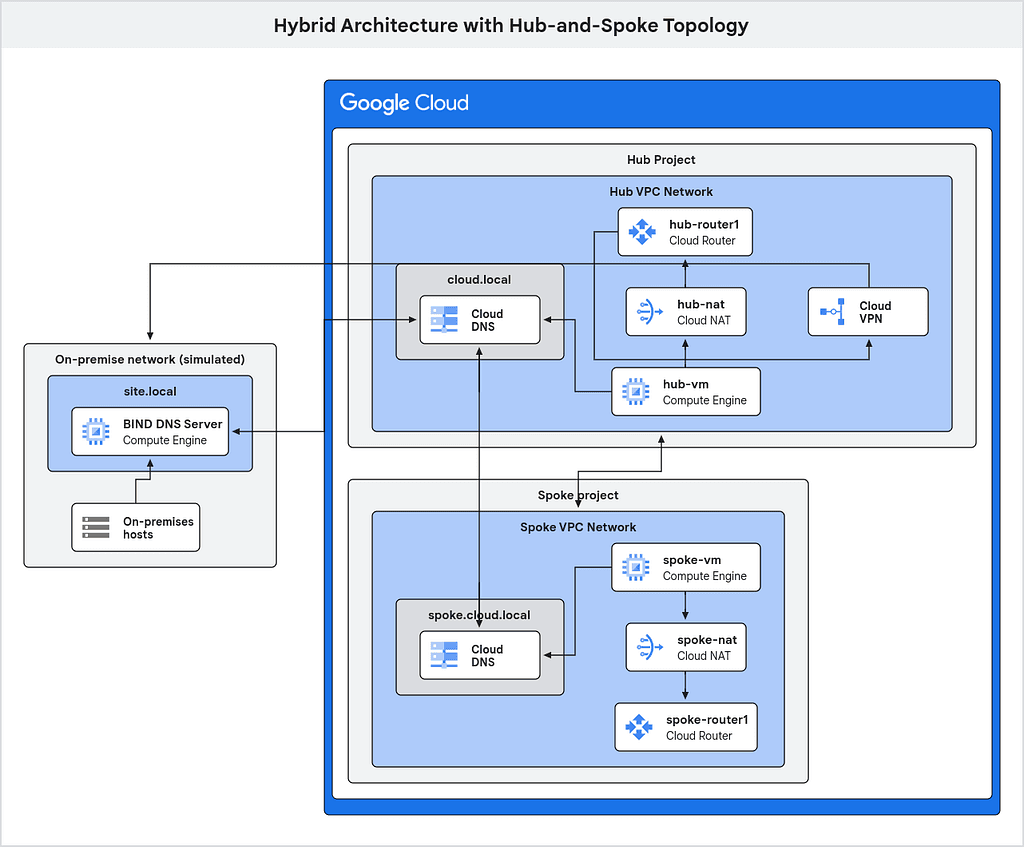
Google Cloud Networking: Hybrid Connectivity with Hub and Spoke Topology
Google Cloud Networking: Hybrid Architecture with Hub and Spoke Topology In today’s hybrid IT landscape, businesses need seamless connections between on-premise infrastructure and cloud resources. One of the most popular networking architectures is the hub-and-spoke topology. This architecture centralizes network control while granting secure access to various cloud and on-premise environments. This article guides you through the implementation of this approach for hybrid connectivity within Google Cloud, highlighting its advantages for managing complex network configurations. The architecture diagram Lab Design In this section, we are going to deep dive into the steps required to build the architecture. Generally, these are the main steps: Create projects for hub, spoke, and simulated on-premise environments. Set up custom VPC networks in each project, with 1 subnetwork in each network. Set up firewall rules. Set up VPC network peering between hub and spoke networks. Set up HA VPN between on-premise and hub networks. Create VMs for testing. Set up DNS managed zones in hub and spoke networks. Set up custom DNS server in simulated on-premise environment using BIND. Set up DNS forwarding between on-premise and hub networks. Test the architecture. Step 1: Project Set-up Let’s start by exporting several variables that we will use throughout the lab. You can skip this step if you have your projects ready. Note that project IDs should be globally unique. Therefore, you will need to come up with your own’s project IDs. # TODO: change these Project IDs export HUB_PROJECT_ID="dns-hub" export SPOKE_PROJECT_ID="dns-spoke" export ONPREM_PROJECT_ID="dns-onprem" export REGION="asia-southeast2" export HUB_NETWORK_NAME="hub-network" export HUB_SUBNET_NAME="hub-subnet" export SPOKE_NETWORK_NAME="spoke-network" export SPOKE_SUBNET_NAME="spoke-subnet" export ONPREM_NETWORK_NAME="onprem-network" export ONPREM_SUBNET_NAME="onprem-subnet" Now, let’s create 3 new projects for the architecture, each for hub, spoke, and simulated on-premise environments. # Create simulated on-premise project gcloud projects create $ONPREM_PROJECT_ID \ --name="On-premise Project" # Create hub project gcloud projects create $HUB_PROJECT_ID \ --name="Hub Project" # Create spoke project gcloud projects create $SPOKE_PROJECT_ID \ --name="Spoke Project" Attach these projects to your billing account. The commands below will link the 3 projects to the same billing account. # TODO: change to your billing account ID export BILLING_ACCOUNT_ID="0X0X0X-0X0X0X-0X0X0X" gcloud billing projects link $ONPREM_PROJECT_ID \ --billing-account=$BILLING_ACCOUNT_ID gcloud billing projects link $HUB_PROJECT_ID \ --billing-account=$BILLING_ACCOUNT_ID gcloud billing projects link $SPOKE_PROJECT_ID \ --billing-account=$BILLING_ACCOUNT_ID Then, let’s enable some APIs in these projects. gcloud services enable compute.googleapis.com config.googleapis.com \ --project=$ONPREM_PROJECT_ID gcloud services enable compute.googleapis.com dns.googleapis.com \ --project=$HUB_PROJECT_ID gcloud services enable compute.googleapis.com dns.googleapis.com \ --project=$SPOKE_PROJECT_ID Step 2: VPC Networks Next, we will create 3 VPC networks, one in each project. # Create VPC network and subnetwork in on-premise project gcloud compute networks create $ONPREM_NETWORK_NAME \ --project=$ONPREM_PROJECT_ID \ --subnet-mode="custom" gcloud compute networks subnets create onprem-subnet \ --project=$ONPREM_PROJECT_ID \ --network=$ONPREM_NETWORK_NAME \ --range=10.10.0.0/24 \ --region=$REGION # Create VPC network and subnetwork in hub project gcloud compute networks create $HUB_NETWORK_NAME \ --project=$HUB_PROJECT_ID \ --subnet-mode="custom" gcloud compute networks subnets create hub-subnet \ --project=$HUB_PROJECT_ID \ --network=$HUB_NETWORK_NAME \ --range=10.11.0.0/24 \ --region=$REGION # Create VPC network and subnetwork in spoke project gcloud compute networks create $SPOKE_NETWORK_NAME \ --project=$SPOKE_PROJECT_ID \ --subnet-mode="custom" gcloud compute networks subnets create spoke-subnet \ --project=$SPOKE_PROJECT_ID \ --network=$SPOKE_NETWORK_NAME \ --range=10.12.0.0/24 \ --region=$REGION Step 3: Firewall Rules Now, let’s set up firewall rules to allow SSH and ICMP. gcloud compute firewall-rules create onprem-network-allow-ssh-icmp \ --project=$ONPREM_PROJECT_ID \ --network=$ONPREM_NETWORK_NAME \ --allow=tcp:22,icmp \ --description="Allow SSH and ICMP to VMs" \ --direction=INGRESS gcloud compute firewall-rules create hub-network-allow-ssh-icmp \ --project=$HUB_PROJECT_ID \ --network=$HUB_NETWORK_NAME \ --allow=tcp:22,icmp \ --description="Allow SSH and ICMP to VMs" \ --direction=INGRESS gcloud compute firewall-rules create spoke-network-allow-ssh-icmp \ --project=$SPOKE_PROJECT_ID \ --network=$SPOKE_NETWORK_NAME \ --allow=tcp:22,icmp \ --description="Allow SSH and ICMP to VMs" \ --direction=INGRESS Step 4: VPC Network Peering To connect hub and spoke networks, we will utilize VPC network peering. The peering connections should be created twice, one from hub network and the other from spoke network. gcloud compute networks peerings create hub-to-spoke \ --project=$HUB_PROJECT_ID \ --network=$HUB_NETWORK_NAME \ --peer-project=$SPOKE_PROJECT_ID \ --peer-network=$SPOKE_NETWORK_NAME \ --export-custom-routes gcloud compute networks peerings create spoke-to-hub \ --project=$SPOKE_PROJECT_ID \ --network=$SPOKE_NETWORK_NAME \ --peer-project=$HUB_PROJECT_ID \ --peer-network=$HUB_NETWORK_NAME \ --import-custom-routes Step 5: HA VPN Connection The hub network connects to on-premise network using highly available (HA) VPN connection. Ideally, Cloud Interconnect will also work if you need larger bandwidth. Step 5.1: Create VPN Gateways We will create 2 VPN gateways, each in hub and on-premise networks. gcloud compute vpn-gateways create hub-vpn-gw1 \ --project=$HUB_PROJECT_ID \ --region=$REGION \ --network=$HUB_NETWORK_NAME gcloud compute vpn-gateways create onprem-vpn-gw1 \ --project=$ONPREM_PROJECT_ID \ --region=$REGION \ --network=$ONPREM_NETWORK_NAME Step 5.2: Create Cloud Routers Before creating Cloud Router resources, set 2 ASNs (Autonomous System Numbers) to be used by each router. In this example, we will use 65001 for hub router and 65002 for on-premise router. # Set up Google ASN for both routers export ASN_HUB=65001 export ASN_ONPREM=65002 # Create Cloud Routers gcloud compute routers create hub-router1 \ --project=$HUB_PROJECT_ID \ --region=$REGION \ --network=$HUB_NETWORK_NAME \ --asn=$ASN_HUB \ --advertisement-mode=CUSTOM \ --set-advertisement-groups=ALL_SUBNETS \ --set-advertisement-ranges=10.12.0.0/24="Spoke network subnet" gcloud compute routers create onprem-router1 \ --project=$ONPREM_PROJECT_ID \ --region=$REGION \ --network=$ONPREM_NETWORK_NAME \ --asn=$ASN_ONPREM Note that the Cloud Router in hub network should advertise the subnets from spoke network. Otherwise, on-premise network and spoke network will not be able to communicate although DNS queries are resolved. Step 5.3: Create VPN Tunnels Let’s create 2 VPN tunnels from each network. For organizations with “Restrict VPN Peer IPs” organization policy set to “Deny All”, this step might give you error. To handle that issue, you will need to allow the specific VPN peer IP in the organization policy. # TODO: Create 2 shared secrets export SHARED_SECRET_1=[shared-secret-1] export SHARED_SECRET_2=[shared-secret-2] # VPN Gateways export ONPREM_GW="projects/$ONPREM_PROJECT_ID/regions/$REGION/vpnGateways/onprem-vpn-gw1" export HUB_GW="projects/$HUB_PROJECT_ID/regions/$REGION/vpnGateways/hub-vpn-gw1" # Create 2 tunnels in hub network gcloud compute vpn-tunnels create hub-tunnel0 \ --project=$HUB_PROJECT_ID \ --region=$REGION \ --peer-gcp-gateway=$ONPREM_GW \ --ike-version=2 \ --shared-secret=$SHARED_SECRET_1 \ --router=hub-router1 \ --vpn-gateway=hub-vpn-gw1 \ --interface=0 gcloud compute vpn-tunnels create hub-tunnel1 \ --project=$HUB_PROJECT_ID \ --region=$REGION \ --peer-gcp-gateway=$ONPREM_GW \ --ike-version=2 \ --shared-secret=$SHARED_SECRET_2 \ --router=hub-router1 \ --vpn-gateway=hub-vpn-gw1 \ --interface=1 # Create 2 tunnels in on-premise network gcloud compute vpn-tunnels create onprem-tunnel0 \ --project=$ONPREM_PROJECT_ID \ --region=$REGION \ --peer-gcp-gateway=$HUB_GW \ --ike-version=2 \ --shared-secret=$SHARED_SECRET_1 \ --router=onprem-router1 \ --vpn-gateway=onprem-vpn-gw1 \ --interface=0 gcloud compute vpn-tunnels create onprem-tunnel1 \ --project=$ONPREM_PROJECT_ID \ --region=$REGION \ --peer-gcp-gateway=$HUB_GW \ --ike-version=2 \ --shared-secret=$SHARED_SECRET_2 \ --router=onprem-router1 \ --vpn-gateway=onprem-vpn-gw1 \ --interface=1 Step 5.4: Create BGP Peering for Each Tunnel We will create 4 router interfaces and attach 1 BGP peer to each of them. # Router interface and BGP peer for tunnel0 in hub network gcloud compute routers add-interface hub-router1 \ --interface-name if-hub-tunnel0-to-onprem \ --ip-address 169.254.0.1 \ --mask-length 30 \ --vpn-tunnel hub-tunnel0 \ --region $REGION \ --project $HUB_PROJECT_ID gcloud compute routers add-bgp-peer hub-router1 \ --peer-name bgp-hub-tunnel0-to-onprem \ --interface if-hub-tunnel0-to-onprem \ --peer-ip-address 169.254.0.2 \ --peer-asn $ASN_ONPREM \ --region $REGION \ --project $HUB_PROJECT_ID # Router interface and BGP peer for tunnel1 in hub network gcloud compute routers add-interface hub-router1 \ --interface-name if-hub-tunnel1-to-onprem \ --ip-address 169.254.1.1 \ --mask-length 30 \ --vpn-tunnel hub-tunnel1 \ --region $REGION \ --project $HUB_PROJECT_ID gcloud compute routers add-bgp-peer hub-router1 \ --peer-name bgp-hub-tunnel1-to-onprem \ --interface if-hub-tunnel1-to-onprem \ --peer-ip-address 169.254.1.2 \ --peer-asn $ASN_ONPREM \ --region $REGION \ --project $HUB_PROJECT_ID # Router interface and BGP peer for tunnel0 in on-premise network gcloud compute routers add-interface onprem-router1 \ --interface-name if-onprem-tunnel0-to-hub \ --ip-address 169.254.0.2 \ --mask-length 30 \ --vpn-tunnel onprem-tunnel0 \ --region $REGION \ --project $ONPREM_PROJECT_ID gcloud compute routers add-bgp-peer onprem-router1 \ --peer-name bgp-onprem-tunnel0-to-hub \ --interface if-onprem-tunnel0-to-hub \ --peer-ip-address 169.254.0.1 \ --peer-asn $ASN_HUB \ --region $REGION \ --project $ONPREM_PROJECT_ID # Router interface and BGP peer for tunnel1 in on-premise network gcloud compute routers add-interface onprem-router1 \ --interface-name if-onprem-tunnel1-to-hub \ --ip-address 169.254.1.2 \ --mask-length 30 \ --vpn-tunnel onprem-tunnel1 \ --region $REGION \ --project $ONPREM_PROJECT_ID gcloud compute routers add-bgp-peer onprem-router1 \ --peer-name bgp-onprem-tunnel1-to-hub \ --interface if-onprem-tunnel1-to-hub \ --peer-ip-address 169.254.1.1 \ --peer-asn $ASN_HUB \ --region $REGION \ --project $ONPREM_PROJECT_ID Step 5.5: Validate Connection Now, let’s check if the tunnels are up and running. Run the commands below and see if they return “Tunnel is up and running.” gcloud compute vpn-tunnels describe hub-tunnel0 \ --project $HUB_PROJECT_ID \ --region $REGION \ --format "get(detailedStatus)" gcloud compute vpn-tunnels describe hub-tunnel1 \ --project $HUB_PROJECT_ID \ --region $REGION \ --format "get(detailedStatus)" gcloud compute vpn-tunnels describe onprem-tunnel0 \ --project $ONPREM_PROJECT_ID \ --region $REGION \ --format "get(detailedStatus)" gcloud compute vpn-tunnels describe onprem-tunnel1 \ --project $ONPREM_PROJECT_ID \ --region $REGION \ --format "get(detailedStatus)" Step 6: Virtual Machines for Testing Let’s create 3 VM instances, one in each project. These VM instances will be used for DNS lookup test and ping test. For organizations with “Shielded VMs” organization policy enforced, this step might give you error. To handle that issue, you will need to turn off the enforcement on project level. # VM instance for hub network gcloud compute instances create hub-vm \ --project=$HUB_PROJECT_ID \ --zone=${REGION}-a \ --machine-type=e2-medium \ --network=$HUB_NETWORK_NAME \ --subnet=$HUB_SUBNET_NAME \ --tags=client-vm \ --metadata enable-oslogin=TRUE \ --no-address # VM instance for spoke network gcloud compute instances create spoke-vm \ --project=$SPOKE_PROJECT_ID \ --zone=${REGION}-a \ --machine-type=e2-medium \ --network=$SPOKE_NETWORK_NAME \ --subnet=$SPOKE_SUBNET_NAME \ --tags=client-vm \ --metadata enable-oslogin=TRUE \ --no-address # VM instance for on-premise network gcloud compute instances create onprem-vm \ --project=$ONPREM_PROJECT_ID \ --zone=${REGION}-a \ --machine-type=e2-medium \ --network=$ONPREM_NETWORK_NAME \ --subnet=$ONPREM_SUBNET_NAME \ --tags=client-vm \ --metadata enable-oslogin=TRUE \ --no-address Grab the internal IPs of each VM. We will use them in next steps. Step 7: DNS Managed Zones Now, we will set up DNS Managed Zones in hub network and spoke network. Step 7.1: Create private DNS zones # Create private DNS zone "cloud.local" in hub network gcloud dns managed-zones create cloud-local-zone \ --dns-name="cloud.local." \ --description="Private DNS zone for resources in hub network" \ --project=$HUB_PROJECT_ID \ --networks=$HUB_NETWORK_NAME \ --visibility=private # Create private DNS zone "spoke.cloud.local" in spoke network gcloud dns managed-zones create spoke-local-zone \ --dns-name="spoke.cloud.local." \ --description="Private DNS zone for resources in spoke network" \ --project=$SPOKE_PROJECT_ID \ --networks=$SPOKE_NETWORK_NAME \ --visibility=private Step 7.2: Create DNS peering zones Next, let’s configure DNS peering between hub network and spoke network. Spoke network will peer using “local.” DNS name so that it will be able to access both “cloud.local” and “site.local” DNS names. # Create peering DNS zone "spoke.cloud.local." in hub network gcloud dns managed-zones create spoke-peering-zone \ --dns-name="spoke.cloud.local." \ --description="Private DNS peering zone to spoke network" \ --project=$HUB_PROJECT_ID \ --networks=$HUB_NETWORK_NAME \ --target-project=$SPOKE_PROJECT_ID \ --target-network=$SPOKE_NETWORK_NAME \ --visibility=private # Create peering DNS zone "local." in spoke network gcloud dns managed-zones create hub-peering-zone \ --dns-name="local." \ --description="Private DNS peering zone to hub network" \ --project=$SPOKE_PROJECT_ID \ --networks=$SPOKE_NETWORK_NAME \ --target-project=$HUB_PROJECT_ID \ --target-network=$HUB_NETWORK_NAME \ --visibility=private Step 7.3: Add DNS records # Create test.cloud.local record cat > test-cloud-record.yml <<EOF kind: dns#resourceRecordSet name: test.cloud.local. rrdatas: - [INTERNAL_IP_OF_HUB_VM] ttl: 300 type: A EOF # Import the record to cloud local zone gcloud dns record-sets import -z=cloud-local-zone \ --project=$HUB_PROJECT_ID \ --delete-all-existing test-cloud-record.yml # Create test.spoke.cloud.local record cat > test-spoke-record.yml <<EOF kind: dns#resourceRecordSet name: test.spoke.cloud.local. rrdatas: - [INTERNAL_IP_OF_SPOKE_VM] ttl: 300 type: A EOF # Import the record to spoke local zone gcloud dns record-sets import -z=spoke-local-zone \ --project=$SPOKE_PROJECT_ID \ --delete-all-existing test-spoke-record.yml Step 8: Custom DNS Server We will use BIND 9 as the custom DNS server, which is currently available in Google Cloud Marketplace. Step 8.1: Launch the DNS Server Here are the steps to set up the DNS server on Google Compute Engine VM: Go to the Product Page in Google Cloud Marketplace. You can also search for “DNS Server - BIND DNS Server on Ubuntu 20.04 LTS”. Click “Get Started” and agree to the “Terms and agreements”. Click “Launch” and fill in the details. Make sure that you select a zone in the region that you used for the on-premise network. Click “Deploy”. For organizations with “Define trusted image projects” organization policy enabled, you should allow images from “projects/mpi-cloud-infra-services-publi” in the policy. For organizations with “Define allowed external IPs for VM instances” organization policy set to “deny all”, you should allow this particular VM to use external IP in the policy. Step 8.2: Sign in and add DNS record After the deployment is completed, go to Google Compute Engine page and SSH to “dns-server-vm”. Run “sudo passwd” and set a new password for “root” user. Grab the external IP of “dns-server-vm”. Go to [EXTERNAL_IP]:10000 to access Webmin. Sign in using “root” as the user and the new password. In the left navigation bar, click “Refresh Modules” to load the BIND DNS Server module. Go to “Servers”, and click “BIND DNS Server”. Click “Create master zone”. Set the “Domain name / Network” as “site.local” and “Email address” as your own email address. Click “Create”. Click on the newly created master zone name and click “Address” to add a new A record. Set the “Name” as “test” and “Address” as the internal IP address of “onprem-vm” in the on-premise project. Click on the “Apply configuration” button on the top-right corner of the page. Step 8.3: Make On-premise network use the new DNS server We will set the internal IP of the new DNS server as the alternate DNS server of the on-premise network. This is a workaround as we are simulating on-premise environment in a Google Cloud project. export ONPREM_DNS_SERVER_INT_IP=[internal-ip-of-dns-server-vm] gcloud dns policies create forward-to-bind9 \ --description="Forward DNS queries to BIND server" \ --project=$ONPREM_PROJECT_ID \ --networks=$ONPREM_NETWORK_NAME \ --private-alternative-name-servers=$ONPREM_DNS_SERVER_INT_IP \ --enable-logging Step 9: DNS Forwarding Now, we need to set up DNS forwarding to forward DNS queries from on-premise network to hub DNS server and vice versa. Step 9.1: Hub to on-premise forwarding First, let’s set up outbound DNS forwarding from hub network to on-premise DNS server. export ONPREM_DNS_SERVER_EXT_IP=[external-ip-of-dns-server-vm] # Create outbound forwarding DNS zone "site.local" gcloud dns managed-zones create site-forwarding-zone \ --dns-name="site.local." \ --description="Private DNS zone to forward to on-premise DNS server" \ --project=$HUB_PROJECT_ID \ --networks=$HUB_NETWORK_NAME \ --forwarding-targets=$ONPREM_DNS_SERVER_EXT_IP \ --visibility=private Step 9.2: On-premise to hub forwarding Next, let’s set up inbound DNS forwarding from on-premise network to hub DNS server. gcloud dns policies create hub-inbound-policy \ --description="DNS inbound policy from onprem-network to hub-network" \ --project=$HUB_PROJECT_ID \ --networks=$HUB_NETWORK_NAME \ --enable-inbound-forwarding \ --enable-logging Now, go to Cloud DNS → DNS Server Policies and select “hub-inbound-policy”. Go to “In Use By” tab and grab the “inbound query forwarding IP”. We will use this IP to set up forwarding in BIND DNS Server. Now, go back to Webmin and follow these steps: On “BIND DNS Server” page, go to “Edit Config File”. Select “/etc/bind/named.conf.options” in the file selector. Change the config file to this: acl good-clients { 35.199.192.0/19; }; options { directory "/var/cache/bind"; dnssec-validation no; allow-recursion { good-clients; }; listen-on-v6 { any; }; forwarders { [inbound-query-forwarding-ip]; }; }; Remember to change “[inbound-query-forwarding-ip]” to the IP from “hub-inbound-policy” DNS server policy. Click on the green “Save” button on the bottom-left corner and click on the “Apply configuration” button on the top-right corner of the page to save the settings. Step 10: Validation Step 10.1: Cloud NAT Since our test VMs don’t have external IPs, they cannot connect to the internet by default. Therefore, we need to configure Cloud NAT to enable outbound connection to the internet. gcloud compute routers nats create hub-nat \ --router=hub-router1 \ --project=$HUB_PROJECT_ID \ --region=$REGION \ --auto-allocate-nat-external-ips \ --nat-all-subnet-ip-ranges \ --enable-logging gcloud compute routers nats create onprem-nat \ --router=onprem-router1 \ --project=$ONPREM_PROJECT_ID \ --region=$REGION \ --auto-allocate-nat-external-ips \ --nat-all-subnet-ip-ranges \ --enable-logging # For spoke network, we need to create Cloud Router first gcloud compute routers create spoke-router1 \ --project=$SPOKE_PROJECT_ID \ --region=$REGION \ --network=$SPOKE_NETWORK_NAME gcloud compute routers nats create spoke-nat \ --router=spoke-router1 \ --project=$SPOKE_PROJECT_ID \ --region=$REGION \ --auto-allocate-nat-external-ips \ --nat-all-subnet-ip-ranges \ --enable-logging Step 10.2: Test! Now that everything is set up, let’s test the architecture by SSH to each VMs in the three projects (hub-vm, spoke-vm, onprem-vm) and run these commands: # Install dnsutils package sudo apt install dnsutils # Run DNS lookup nslookup test.cloud.local nslookup test.spoke.cloud.local nslookup test.site.local If the VPN connection and VPC peering are set up correctly, you should be able to ping other VMs through the DNS name like this: ping test.cloud.local Teardown To clean all resources that we have created, run these commands: # Delete Cloud NAT gcloud compute routers nats delete hub-nat \ --project=$HUB_PROJECT_ID \ --region=$REGION \ --router=hub-router1 gcloud compute routers nats delete spoke-nat \ --project=$SPOKE_PROJECT_ID \ --region=$REGION \ --router=spoke-router1 gcloud compute routers nats delete onprem-nat \ --project=$ONPREM_PROJECT_ID \ --region=$REGION \ --router=onprem-router1 # Delete Cloud Router in spoke-network gcloud compute routers delete spoke-router1 \ --project=$SPOKE_PROJECT_ID \ --region=$REGION # Delete DNS forwarding and peering zones gcloud dns managed-zones delete site-forwarding-zone \ --project=$HUB_PROJECT_ID gcloud dns managed-zones delete spoke-peering-zone \ --project=$HUB_PROJECT_ID gcloud dns managed-zones delete hub-peering-zone \ --project=$SPOKE_PROJECT_ID # Delete DNS private zones gcloud dns record-sets delete test.cloud.local. \ -z=cloud-local-zone \ --project=$HUB_PROJECT_ID \ --type=A gcloud dns managed-zones delete cloud-local-zone \ --project=$HUB_PROJECT_ID gcloud dns record-sets delete test.spoke.cloud.local. \ -z=spoke-local-zone \ --project=$SPOKE_PROJECT_ID \ --type=A gcloud dns managed-zones delete spoke-local-zone \ --project=$SPOKE_PROJECT_ID # Delete DNS server policies gcloud dns policies update hub-inbound-policy \ --networks="" \ --project=$HUB_PROJECT_ID gcloud dns policies delete hub-inbound-policy \ --project=$HUB_PROJECT_ID gcloud dns policies update forward-to-bind9 \ --networks="" \ --project=$ONPREM_PROJECT_ID gcloud dns policies delete forward-to-bind9 \ --project=$ONPREM_PROJECT_ID # Delete VM instances gcloud compute instances delete hub-vm \ --project=$HUB_PROJECT_ID \ --zone=${REGION}-a gcloud compute instances delete spoke-vm \ --project=$SPOKE_PROJECT_ID \ --zone=${REGION}-a gcloud compute instances delete onprem-vm --project=$ONPREM_PROJECT_ID \ --zone=${REGION}-a # Delete BGP Peering and Interfaces gcloud compute routers remove-bgp-peer hub-router1 \ --peer-name=bgp-hub-tunnel0-to-onprem \ --project=$HUB_PROJECT_ID \ --region=$REGION gcloud compute routers remove-bgp-peer hub-router1 \ --peer-name=bgp-hub-tunnel1-to-onprem \ --project=$HUB_PROJECT_ID \ --region=$REGION gcloud compute routers remove-interface hub-router1 \ --interface-name=if-hub-tunnel0-to-onprem \ --project=$HUB_PROJECT_ID \ --region=$REGION gcloud compute routers remove-interface hub-router1 \ --interface-name=if-hub-tunnel1-to-onprem \ --project=$HUB_PROJECT_ID \ --region=$REGION gcloud compute routers remove-bgp-peer onprem-router1 \ --peer-name=bgp-onprem-tunnel0-to-hub \ --project=$ONPREM_PROJECT_ID \ --region=$REGION gcloud compute routers remove-bgp-peer onprem-router1 \ --peer-name=bgp-onprem-tunnel1-to-hub \ --project=$ONPREM_PROJECT_ID \ --region=$REGION gcloud compute routers remove-interface onprem-router1 \ --interface-name=if-onprem-tunnel0-to-hub \ --project=$ONPREM_PROJECT_ID \ --region=$REGION gcloud compute routers remove-interface onprem-router1 \ --interface-name=if-onprem-tunnel1-to-hub \ --project=$ONPREM_PROJECT_ID \ --region=$REGION # Delete VPN Tunnels gcloud compute vpn-tunnels delete hub-tunnel0 \ --project=$HUB_PROJECT_ID \ --region=$REGION gcloud compute vpn-tunnels delete hub-tunnel1 \ --project=$HUB_PROJECT_ID \ --region=$REGION gcloud compute vpn-tunnels delete onprem-tunnel0 \ --project=$ONPREM_PROJECT_ID \ --region=$REGION gcloud compute vpn-tunnels delete onprem-tunnel1 \ --project=$ONPREM_PROJECT_ID \ --region=$REGION # Delete Cloud Router in on-premise and hub networks gcloud compute routers delete hub-router1 \ --project=$HUB_PROJECT_ID \ --region=$REGION gcloud compute routers delete onprem-router1 \ --project=$ONPREM_PROJECT_ID \ --region=$REGION # Delete VPN Gateways gcloud compute vpn-gateways delete hub-vpn-gw1 \ --project=$HUB_PROJECT_ID \ --region=$REGION gcloud compute vpn-gateways delete onprem-vpn-gw1 \ --project=$ONPREM_PROJECT_ID \ --region=$REGION # Delete VPC Peering gcloud compute networks peerings delete hub-to-spoke \ --project=$HUB_PROJECT_ID \ --network=$HUB_NETWORK_NAME gcloud compute networks peerings delete spoke-to-hub \ --project=$SPOKE_PROJECT_ID \ --network=$SPOKE_NETWORK_NAME # Delete Firewall Rules gcloud compute firewall-rules delete onprem-network-allow-ssh-icmp \ --project=$ONPREM_PROJECT_ID gcloud compute firewall-rules delete hub-network-allow-ssh-icmp \ --project=$HUB_PROJECT_ID gcloud compute firewall-rules delete spoke-network-allow-ssh-icmp \ --project=$SPOKE_PROJECT_ID To delete BIND DNS server, go to Solutions → Solution deployments, select the deployment and click “Delete”. After that, you can continue deleting the VPC networks and projects: # Delete on-premise VPC network gcloud compute networks subnets delete onprem-subnet \ --project=$ONPREM_PROJECT_ID \ --region=$REGION gcloud compute networks delete $ONPREM_NETWORK_NAME \ --project=$ONPREM_PROJECT_ID # Delete hub VPC network gcloud compute networks subnets delete hub-subnet \ --project=$HUB_PROJECT_ID \ --region=$REGION gcloud compute networks delete $HUB_NETWORK_NAME \ --project=$HUB_PROJECT_ID # Delete spoke VPC network gcloud compute networks subnets delete spoke-subnet \ --project=$SPOKE_PROJECT_ID \ --region=$REGION gcloud compute networks delete $SPOKE_NETWORK_NAME \ --project=$SPOKE_PROJECT_ID # Delete projects gcloud projects delete $ONPREM_PROJECT_ID gcloud projects delete $HUB_PROJECT_ID gcloud projects delete $SPOKE_PROJECT_ID Further Reads To ensure successful DNS and VPC peering connections between hub and spoke networks, check out this article: Transit Network. Visual guide on how to set up BIND DNS server in Google Cloud: YouTube. Infrastructure as Code: Terraform codes are available in this GitHub repository.
Life, Health & Travel

The Mandarin Echoes in Cappadocia: Why Chinese Tourists Flock to Turkey?
Walking through the ancient, rock-cut churches of the Göreme Open Air Museum on March 2, 2026, I noticed something unexpected about the background noise. Echoing off the centuries-old stone walls wasn't just the usual blend of English or European languages—it was the distinct, constant hum of Mandarin. While standing outside one of the smaller chapels in the

Turkish Hammam: Need to Strip Off?
I don't want to be naked, and I don't want to see any of you naked. Let's not be in the same room! One of the girls joked during breakfast in Cappadocia as we planned our afternoon Turkish bath. It was March 3, 2026, and for Southeast Asians like us, being naked in a public setting is not exactly our idea of fun—even for the one in our group used to Japanese